Tools
Requirements
A machine with at least 8GB RAM, and 20GB of disk storage.
Internet connection for the inital setup.
Windows, Linux preferred.
Setup
Docker will be used to avoid compatibility issues on different OSes and machines. A docker image will be provided, with all the required tools for the course installed. The student will work inside the docker container, which will emulate a x64 Debian distribution.
- Windows
- Linux
- Open a terminal
- Run
wsl --install - Reboot
- After the reboot, a terminal will open and continue the installation of Ubuntu (default distro)
- Finish the installation (username and password for an account, won't be used)
- Follow the instructions on the page
- After starting the "Docker Desktop" application, open a terminal
- Run
docker ps, the output should look like this :
PS C:\Users\test> docker ps
CONTAINER ID   IMAGE     COMMAND     CREATED    STATUS  PORTS     NAMES
Build the Docker image
- Create a folder
appsec
PS C:\Users\test> mkdir appsec- Open the file
Dockerfilewith notepad :
PS C:\Users\test> cd appsec
PS C:\Users\test\appsec> notepad Dockerfile- Copy and paste the following
- Create a folder
Details
FROM debian:11-slim

ENV DEBIAN_FRONTEND noninteractive

ENV TZ Europe/Paris

RUN dpkg --add-architecture i386 && \
    apt-get -y update && \
    apt  install -y \
    libc6:i386 \
    libc6-dbg:i386 \
    libc6-dbg \
    lib32stdc++6 \
    g++-multilib \
    cmake \
    curl \
    ipython3 \
    vim \
    net-tools \
    iputils-ping \
    libffi-dev \
    libssl-dev \
    python3-dev \
    python3-pip \
    build-essential \
    ruby \
    ruby-dev \
    tmux \
    strace \
    ltrace \
    nasm \
    wget \
    gdb \
    gdb-multiarch \
    netcat \
    socat \
    git \
    patchelf \
    gawk \
    file \
    locales \
    p7zip-full \
    python3-distutils \
    bison \
    rpm2cpio cpio \
    zstd \
    zsh \
    tzdata --fix-missing && \
    rm -rf /var/lib/apt/list/*

RUN ln -fs /usr/share/zoneinfo/$TZ /etc/localtime && \
    dpkg-reconfigure -f noninteractive tzdata

RUN sh -c "$(curl -fsSL https://raw.githubusercontent.com/ohmyzsh/ohmyzsh/master/tools/install.sh)"

RUN version=$(curl -s https://api.github.com/repos/radareorg/radare2/releases/latest | grep -P '"tag_name": "(.*)"' -o| awk '{print $2}' | awk -F"\"" '{print $2}') && \
    wget https://github.com/radareorg/radare2/releases/download/${version}/radare2_${version}_amd64.deb && \
    dpkg -i radare2_${version}_amd64.deb && rm radare2_${version}_amd64.deb

RUN python3 -m pip install -U pip && \
    python3 -m pip install --no-cache-dir \
    ropgadget \
    z3-solver \
    smmap2 \
    apscheduler \
    ropper \
    unicorn \
    keystone-engine \
    capstone \
    angr \
    pebble \
    r2pipe

RUN gem install one_gadget seccomp-tools && rm -rf /var/lib/gems/2.*/cache/*

RUN git clone --depth 1 https://github.com/pwndbg/pwndbg && \
    cd pwndbg && chmod +x setup.sh && ./setup.sh

# fix pwntools locale issue when running gdb
RUN echo "export LC_CTYPE=C.UTF-8" >> /root/.zshrc && \
    echo "export LC_ALL=en_US.UTF-8" >> /root/.zshrc && \
    echo "export LANG=en_US.UTF-8" >> /root/.zshrc && \
    echo "export LANGUAGE=en_US.UTF-8" >> /root/.zshrc && \
    echo "en_US.UTF-8 UTF-8" >> /etc/locale.gen && \
    locale-gen

# set zsh as default shell when runnning tmux
RUN echo "set-option -g default-shell /bin/zsh" > /etc/tmux.conf

WORKDIR /root/work

RUN python3 -m pip install --no-cache-dir pwntools
Then build with
PS C:\Users\test\appsec> docker build . -t appsecdebian
It should take more than 2 mins to build.
Finally, run the container with
docker run -it --rm --privileged --security-opt="seccomp=unconfined" --cap-add=SYS_PTRACE -v //$(PWD)/work:/root/work -v //$(PWD)/.ssh:/root/.ssh appsecdebian zsh
Each option will be explained later.
Install Docker Engine for Server (not Desktop)
Build the Docker image
- Create a directory
appsec - Copy and paste the following into a file named
Dockerfile
- Create a directory
Details
FROM debian:11-slim

ENV DEBIAN_FRONTEND noninteractive

ENV TZ Europe/Paris

RUN dpkg --add-architecture i386 && \
    apt-get -y update && \
    apt  install -y \
    libc6:i386 \
    libc6-dbg:i386 \
    libc6-dbg \
    lib32stdc++6 \
    g++-multilib \
    cmake \
    curl \
    ipython3 \
    vim \
    net-tools \
    iputils-ping \
    libffi-dev \
    libssl-dev \
    python3-dev \
    python3-pip \
    build-essential \
    ruby \
    ruby-dev \
    tmux \
    strace \
    ltrace \
    nasm \
    wget \
    gdb \
    gdb-multiarch \
    netcat \
    socat \
    git \
    patchelf \
    gawk \
    file \
    locales \
    p7zip-full \
    python3-distutils \
    bison \
    rpm2cpio cpio \
    zstd \
    zsh \
    tzdata --fix-missing && \
    rm -rf /var/lib/apt/list/*

RUN ln -fs /usr/share/zoneinfo/$TZ /etc/localtime && \
    dpkg-reconfigure -f noninteractive tzdata

RUN sh -c "$(curl -fsSL https://raw.githubusercontent.com/ohmyzsh/ohmyzsh/master/tools/install.sh)"

RUN version=$(curl -s https://api.github.com/repos/radareorg/radare2/releases/latest | grep -P '"tag_name": "(.*)"' -o| awk '{print $2}' | awk -F"\"" '{print $2}') && \
    wget https://github.com/radareorg/radare2/releases/download/${version}/radare2_${version}_amd64.deb && \
    dpkg -i radare2_${version}_amd64.deb && rm radare2_${version}_amd64.deb

RUN python3 -m pip install -U pip && \
    python3 -m pip install --no-cache-dir \
    ropgadget \
    z3-solver \
    smmap2 \
    apscheduler \
    ropper \
    unicorn \
    keystone-engine \
    capstone \
    angr \
    pebble \
    r2pipe

RUN gem install one_gadget seccomp-tools && rm -rf /var/lib/gems/2.*/cache/*

RUN git clone --depth 1 https://github.com/pwndbg/pwndbg && \
    cd pwndbg && chmod +x setup.sh && ./setup.sh

# fix pwntools locale issue when running gdb
RUN echo "export LC_CTYPE=C.UTF-8" >> /root/.zshrc && \
    echo "export LC_ALL=en_US.UTF-8" >> /root/.zshrc && \
    echo "export LANG=en_US.UTF-8" >> /root/.zshrc && \
    echo "export LANGUAGE=en_US.UTF-8" >> /root/.zshrc && \
    echo "en_US.UTF-8 UTF-8" >> /etc/locale.gen && \
    locale-gen

# set zsh as default shell when runnning tmux
RUN echo "set-option -g default-shell /bin/zsh" > /etc/tmux.conf

WORKDIR /root/work

RUN python3 -m pip install --no-cache-dir pwntools
Run the build command
docker build . -t appsecdebianIf you are on Ubuntu, and the build fails because of weird errors, you may have to install a Debian VM...
Start the container
docker run -it --rm --privileged --security-opt="seccomp=unconfined" --cap-add=SYS_PTRACE -v $PWD/work:/root/work -v $PWD/.ssh:/root/.ssh appsecdebian zshIf you are on Ubuntu, please run the following commands on your host (outside of docker container)
echo core | sudo tee /proc/sys/kernel/core_pattern
echo 0 | sudo tee /proc/sys/kernel/core_uses_pid
Note taking
It is also highly recommended to take notes during this course, especially when practicing on exercices to have "write-ups" so that you can refer to them later on when you forget how to do something.
I personally use Obsidian to take notes (in Markdown format).
You can write :
- mini guides
- cheatsheets
- snippets of code
These will be allowed during exams.
Docker
Docker is used for isolating your work environment for binary exploitation, from your host machine. Very simply put, it is used like a Virtual Machine (but it's not a VM !)
There are 2 types of important objects in Docker:
- an image
- a container
An image is like a distro where you define what to install, and what to run, but it's not running.
A container is a running image, where you can execute stuff. It is temporary, meaning you can stop it, delete it, and restart it back as you wish, without any problem.
You will be working inside the container, with a shared folder (mounted volume) between your container (temporary) and your host, so that when you destroy the container, you still keep your working files.
List running containers
docker ps
List docker images
docker images
Start a container based on appsecdebian image
docker run -it --rm --privileged --security-opt="seccomp=unconfined" --cap-add=SYS_PTRACE -v $PWD/work:/root/work -v $PWD/.ssh:/root/.ssh appsecdebian zsh
-it : create an interactive shell inside the container for us to use
--rm: automatically remove the container when it exits
--security-opt... : required for binary exploitation inside the container
--cap-add... : required for gdb inside container
-v something:/root : mount the folder `something` inside the container at `/root`
appsecdebian: name of the image
zsh : the command to run
There are lots of other commands, but these should be enough for our use case.
Tmux
Tmux is a "terminal multiplexer", meaning you can split your terminal in multiple windows and manage them more easily.
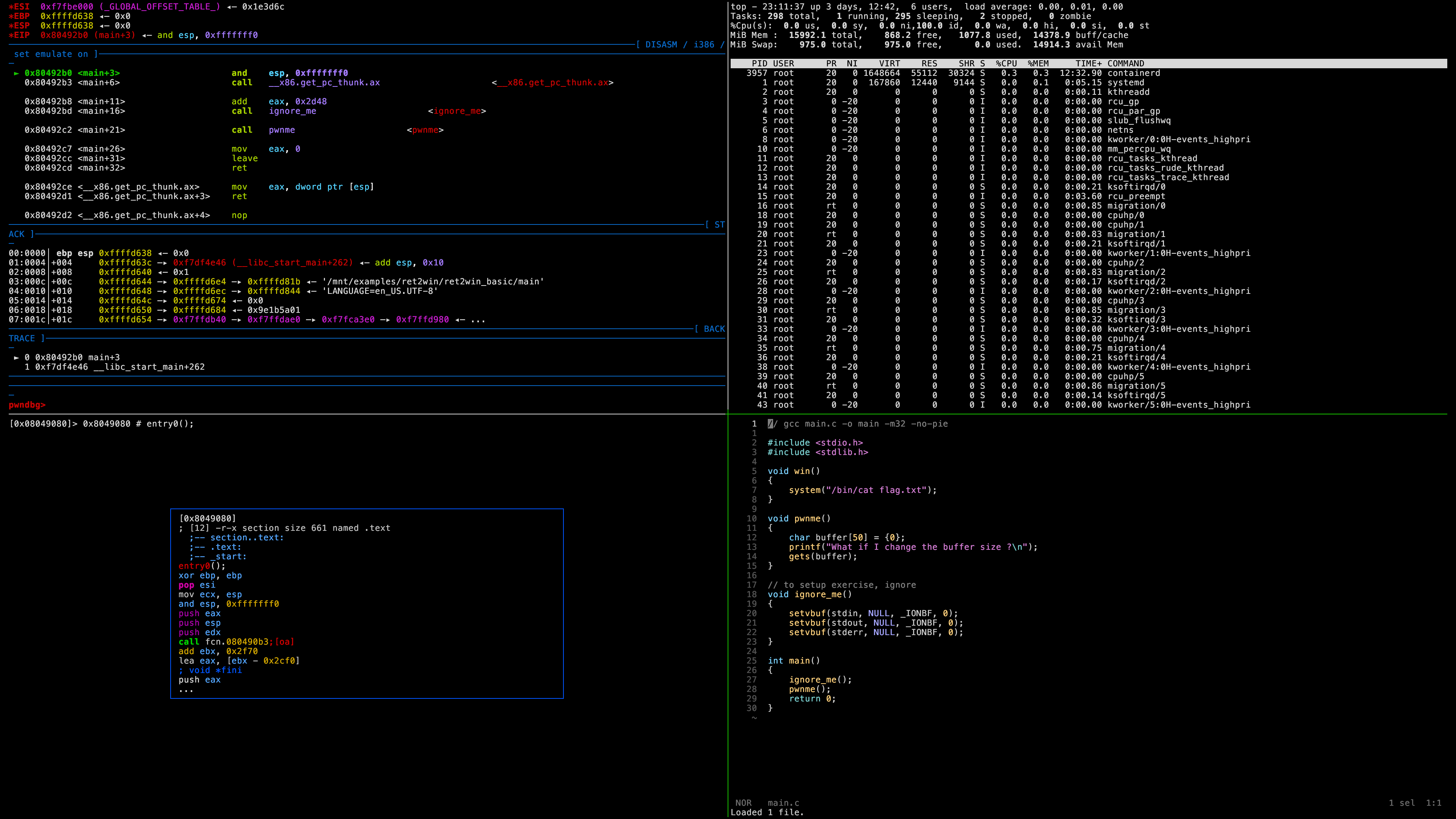
It is required when using gdb (debugger) inside the docker container, and it will make your life easier in the future when using a terminal, so it's better to learn now.
Create a new session:
tmux
Split the pane vertically:
Ctrl+b + %
Split the pane horizontally:
Ctrl+b + "
Move around panes:
Ctrl+b + arrow
Resize active pane interactively :
Hold Ctrl+b, then press an arrow
Create a new window:
Ctrl+b + c (create)
Go to next window:
Ctrl+b + n (next)
Go to previous window:
Ctrl+b + p (previous)
Put the session in the background:
Ctrl+b + d (detach)
Resume / attach to a tmux session:
tmux a
Vim
Vim is the editor used inside the docker container.
It's generally available on any system (or its older alternative vi), and it's quite efficient to use as a text editor.
You can install another text editor if you want using apt install but I recommend to stick with it even if it may be hard at the beginning.
The goal is to learn vim motions which can be used in other editors to edit text faster (no mouse needed).
Open a file in vim :
vim file.txt
Quit the editor without saving:
- Press
: - Then type
q! - Press
EnterThis will be annotated as:q!, same for the next commands.
Save then quit:
:x
Save modifications:
:w
You can also open another file inside the same vim editor, just like in tmux, and move around.
Split vertically:
Ctrl+w + v
Split horizontally:
Ctrl+w + s
Move to another window:
Ctrl+w + arrow
Open another file inside vim:
:e another_file.txt
Close the window:
Ctrl+w + q